

how do i execute a jar file
What Is a JAR File and What You Need to Run One
To execute a JAR file, open your terminal or command prompt and run: java -jar yourfile.jar. You must have the Java Runtime Environment (JRE) installed. If you see an error, your Java installation or file type may need attention. The sections below cover common scenarios.
Key Takeaways
- Execute a JAR file directly from your terminal or command prompt using the `java -jar yourfile.jar` command.
- Confirm the Java Runtime Environment (JRE) is installed on your system; it is a prerequisite for running JAR files.
- Address any execution errors by verifying your Java installation or inspecting the JAR file for potential issues.
Definition of JAR Files and Their Role in Java Applications
A JAR (Java ARchive) file bundles compiled Java classes, resources, and metadata into a single compressed package. It’s the standard distribution format for Java applications, libraries, and tools. Whether you can run one directly depends on whether it’s executable–containing a defined entry point–or a library that requires external class loading.
Java Runtime Environment: Installation and Verification Steps
You need a JRE or JDK installed before running any JAR. Verify yours by opening a terminal and typing java -version. A valid response shows your installed version. If the command isn’t recognized, download the latest JDK from Adoptium or Oracle and follow the installer prompts.
Executable vs Non-Executable JARs: Key Differences and Checks
An executable JAR includes a Main-Class entry in its META-INF/MANIFEST.MF file. A library JAR does not. To check, run: unzip -p yourfile.jar META-INF/MANIFEST.MF. If you see Main-Class: com.example.App, the file is executable. If that attribute is absent, you’ll need to specify the class manually via the classpath.
| Feature | Executable JAR | Non-Executable JAR |
|---|---|---|
| Main-Class in Manifest | Yes | No |
Run with java -jar |
Yes | No |
| Requires classpath flag | No | Yes |
| Common use | Standalone apps, agents | Shared libraries, SDKs |
Step-by-Step Guide to Running JAR Files on Windows 11
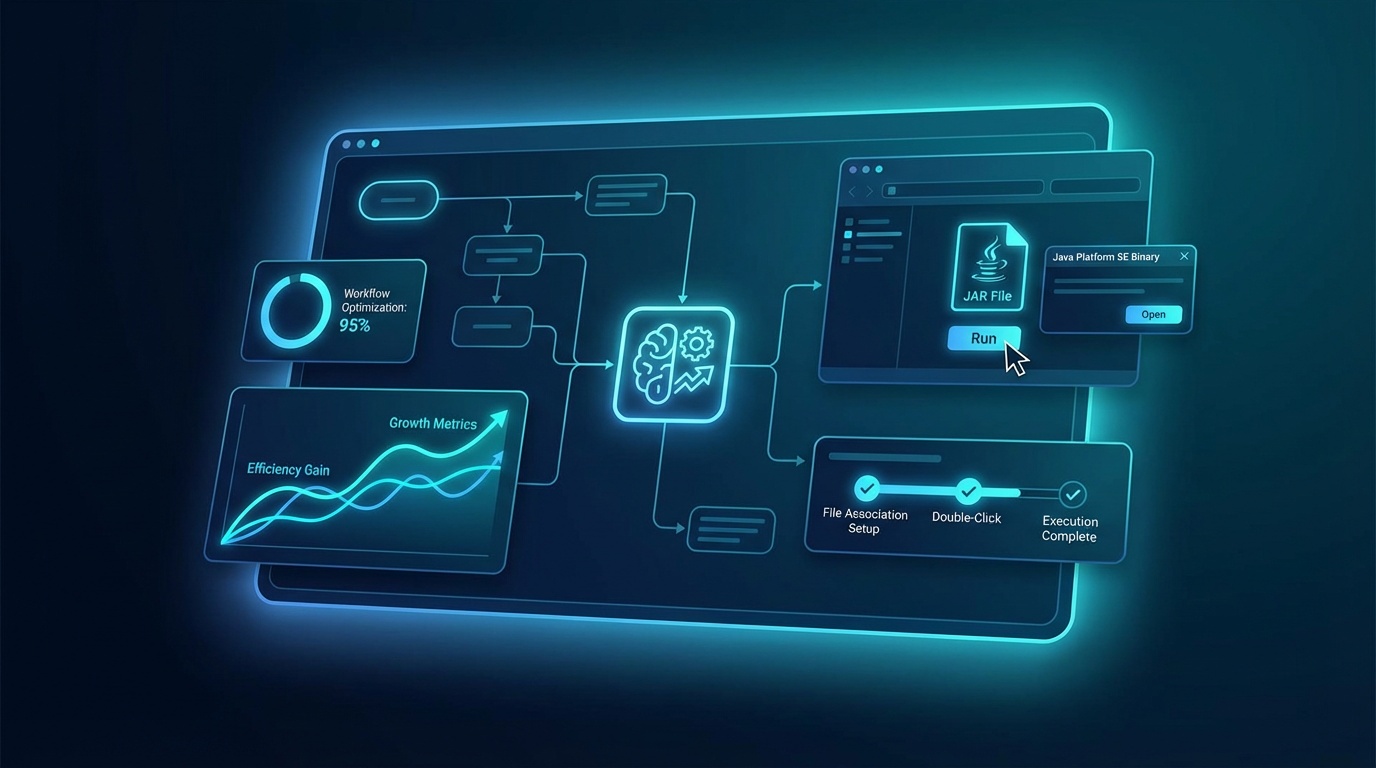
GUI Method: Double-Click and File Association Setup
On Windows 11, right-click your JAR file, select “Open with,” then choose Java Platform SE Binary. If that option is absent, go to Settings > Apps > Default apps, search for “.jar,” and assign the Java launcher. This method only works for executable JARs.
Command Line Method: Using java -jar with Examples
The command line is the most reliable approach on Windows. Open Command Prompt or PowerShell, navigate to your JAR directory, and run:
java -jar myapp.jarTo run a JAR file in Windows 11 or Windows 10 with a specific Java version, prefix the full path to the Java binary:
"C:\Program Files\Java\jdk-21\bin\java.exe" -jar myapp.jarHandling Arguments and Specific Java Versions
Pass runtime arguments directly after the JAR name:
java -jar myapp.jar --config=prod --port=8080java is not recognized in Command Prompt, add the JDK bin folder to your system PATH via System Properties > Environment Variables.
Running JAR Files on Linux: Terminal Commands and Permissions
Basic Terminal Execution with java -jar
Open a terminal, navigate to the file location, and execute:
java -jar myapp.jarThat’s the core command for any executable JAR with a defined manifest entry point on Linux.
Setting Execute Permissions and Scripting for Automation
For automation pipelines, create a shell script:
#!/bin/bash
java -jar /opt/myapp/myapp.jar "$@"
Make it executable with chmod +x run.sh, then run ./run.sh. This pattern is standard for scheduling JAR-based agents via cron.
Classpath Execution for Non-Executable JARs
When a JAR lacks a Main-Class, specify the classpath and entry class manually:
java -cp mylib.jar com.example.MainClassFor detailed instructions, consult the official Java documentation on running JAR files with java -jar.
Troubleshoot Common JAR Execution Errors: A Practical Flowchart
‘Java Not Recognized’ and PATH Issues
If your terminal returns “‘java’ is not recognized,” Java is either not installed or not on your system PATH. Run where java (Windows) or which java (Linux) to locate the binary. Add the bin directory to PATH, then restart your terminal.
‘No Main Manifest Attribute’ and Class Not Found Errors
“No main manifest attribute” means the JAR is non-executable. Switch from -jar to -cp and specify the main class directly. ClassNotFoundException typically means missing dependencies–add them to the classpath with -cp lib/*:myapp.jar on Linux or -cp lib\*;myapp.jar on Windows.
OS-Specific Fixes and Quick Diagnostic Commands
| Error | Diagnostic Command | Fix |
|---|---|---|
| java not recognized | java -version | Install JDK, update PATH |
| No main manifest | unzip -p app.jar META-INF/MANIFEST.MF | Use -cp with a class name |
| Permission denied (Linux) | ls -la myapp.jar | Use chmod to update permissions |
Advanced Options and Business Use Cases for JAR Deployment

Online Tools for No-Install Testing
Platforms like Replit and JDoodle let you run JAR files online without a local installation. These work well for quick testing, but aren’t appropriate for production workloads or sensitive data.
Viewing JAR Contents Without Execution
Inspect a JAR without running it using: jar tf myapp.jar. This lists all contained files, confirming structure and manifest presence before execution. For more on the file format itself, see JAR (file format).
Deploying JAR-Based AI Agents in Recruitment Operations
JAR execution becomes operationally significant when your business runs Java-based automation tools. Recruitment operations increasingly depend on JAR-packaged applications for candidate pipeline management, data processing, and system integrations.
Agentic Systems for Recruitment processes high volumes of CVs and screens candidates rapidly, with strong candidate matching accuracy. When your technical team deploys or maintains JAR-based components that connect to these systems, knowing how to run JAR files correctly on both Windows and Linux reduces downtime–and any deployment delay directly impacts placement volume and revenue. The core command is always: java -jar your-agent.jar. Verify your Java version, confirm the manifest, and set correct permissions. Those three steps separate reliable runs from failures during peak hiring periods.
Putting It All Together: Your JAR Execution Checklist
Every JAR execution scenario follows the same sequence: confirm Java is installed, verify the manifest, then run the appropriate command for your OS. Skipping any step creates errors that look complex but usually resolve quickly with the right check.
Use this checklist before every JAR deployment:
- Run
java -versionto confirm your JRE or JDK is active - Check the manifest with
unzip -p yourfile.jar META-INF/MANIFEST.MF - For executable JARs:
java -jar yourfile.jar - For non-executable JARs:
java -cp yourfile.jar com.example.MainClass - On Linux, confirm permissions with
ls -laand adjust withchmodif needed - On Windows, update PATH via System Properties if
javais not recognized
The command line method is the most reliable across environments. GUI double-click works for simple executable JARs on Windows, but production and automation contexts require terminal execution with explicit version control and argument handling.
For teams managing Java-based automation at scale, deployment reliability matters. A misconfigured PATH or missed manifest check can interrupt pipelines that directly affect placement volume. That’s not a minor inconvenience–it’s lost revenue. Whether you’re managing a Linux cron job running nightly candidate data syncs or a Windows 11 workstation running integration scripts, the environment you verify before you run is what determines whether the job completes or fails.
Frequently Asked Questions
How do I run a .JAR file?
To run a JAR file, the most reliable method is using your terminal or command prompt. Navigate to the file’s directory and execute `java -jar yourfile.jar`. On Windows, you might also double-click an executable JAR if Java is properly associated, which helps streamline operations.
Which program opens .JAR files?
JAR files are opened and executed by the Java Runtime Environment (JRE) or the Java Development Kit (JDK). You need one of these installed on your system to process the Java application. From an operational standpoint, ensuring the correct Java environment is installed is key for successful execution.
How can I make a JAR file executable in Windows?
A JAR file is made executable during its creation if it includes a `Main-Class` entry in its `META-INF/MANIFEST.MF` file. To run such an executable JAR on Windows, you can typically double-click it after ensuring the Java Platform SE Binary is set as the default program for .jar files in your system settings. Otherwise, the command line `java -jar yourfile.jar` is always effective for clear execution.
How do executable JAR files work?
Executable JAR files work by bundling all necessary compiled Java classes, resources, and metadata into a single package. They include a `Main-Class` entry in their `META-INF/MANIFEST.MF` file, which tells the Java Runtime Environment exactly where to start execution within the application. Understanding these mechanics is important for deploying Java-based automation tools, like those we use for AI agents.
What is needed to open a JAR file?
To open and run a JAR file, you primarily need the Java Runtime Environment (JRE) or the Java Development Kit (JDK) installed on your system. These provide the necessary environment for Java applications to execute. Ensuring these prerequisites are met is fundamental for any system, whether it’s a simple utility or a complex AI agent.