

emails are stuck in outbox
Why Emails Get Stuck in the Outbox and Their Business Impact
When emails are stuck in outbox folders, the cause is almost always one of four things: connectivity loss, oversized attachments, corrupted send/receive settings, or authentication failures. The fix usually takes under five minutes once you identify which platform and trigger apply to your situation.
Common Causes Across Outlook, Gmail, and Mobile Apps
Each platform fails in its own way. Outlook typically stalls due to large attachments that breach server limits, an enabled Offline mode, or a damaged send/receive profile. Gmail queues messages when offline sync is active, storage hits the 15 GB cap, or OAuth tokens expire without warning. On Android and iOS, background refresh restrictions, aggressive battery optimization, and stale cache files are the usual suspects.
| Platform | Top Cause | Second Cause | Quick Signal |
|---|---|---|---|
| Outlook (Desktop) | Attachment exceeds size limit | Work Offline mode is active | Status bar shows “Disconnected” |
| Outlook 365 | SMTP authentication error | Antivirus blocks the port | Delivered but still in Outbox |
| Gmail Web | Offline mode is enabled | Storage quota exceeded | Spinning send icon |
| Gmail Android | Battery optimization blocks sync | Corrupted app cache | Outbox badge persists after Wi-Fi |
| iOS Mail | Background refresh is disabled | Expired account credentials | Outbox folder appears unexpectedly |
How Outbox Delays Hit Sales and Operations in Real Estate, Recruitment, and Hospitality
A real estate agent whose lead-response email sits unsent for two hours can lose the listing inquiry to a faster competitor. A recruiter whose candidate offer letter stalls in Outlook can miss the acceptance window entirely. In hospitality, a pre-arrival upsell email that never delivers means lost room-upgrade revenue and a guest who arrives without context about available amenities. These aren’t edge cases — they’re daily revenue risks for teams running on email.
The Real Cost of Stuck Emails: Time and Revenue
B2B response-timing research consistently shows lead conversion drops sharply after the first hour of no contact. For a mid-market recruitment firm sending 200 candidate communications daily, even a 15-minute delivery lag across the team compounds into meaningful placement delays. A stuck outbox isn’t a minor IT inconvenience. It’s a direct revenue leak in any business where communication drives decisions.
Step-by-Step Fixes for Outlook Emails Stuck in Outbox
Quick Resend and Offline Mode Checks
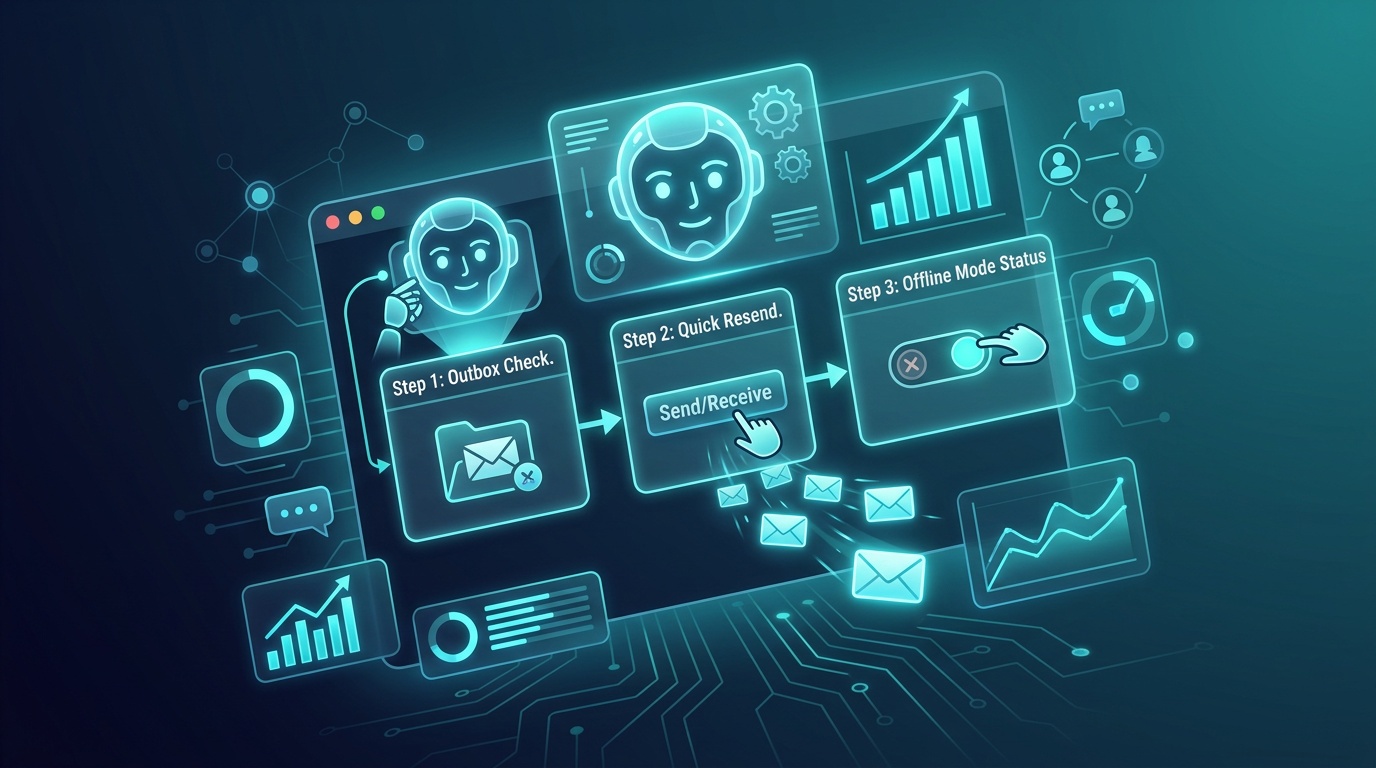
Start with the fastest check: the Send/Receive tab. If “Work Offline” is highlighted, click it once to reconnect, then press F9 to force a send cycle. Still stuck? Open the Outbox, double-click the message, close it without changes, then right-click and select Send. This sequence clears the transmission lock Outlook can place on messages mid-process.
- Click the Send/Receive tab and confirm “Work Offline” is toggled off.
- Press F9 to trigger an immediate send/receive cycle.
- Open the Outbox, double-click the stuck message, then close it.
- Right-click the message and select Send manually.
- If the message stays put, restart Outlook in Safe Mode by holding Ctrl while launching it.
Handle Large Attachments and Profile Repairs
Outlook 365 enforces a 20 MB attachment limit by default, though many Exchange servers cap messages at 10 MB. A message that exceeds the server threshold can sit in the Outbox without generating any error notification — which makes this cause easy to miss. Delete the stuck message, upload the file to OneDrive or SharePoint, and resend with a share link. For recruiters distributing candidate portfolios or real estate agents sending property brochures, this single change removes one of the most common sources of outbox delays.
If attachment size isn’t the issue, a corrupted Outlook profile is worth investigating. Go to Control Panel > Mail > Show Profiles, create a new profile, and add your email account again. Profile corruption tends to accumulate after Windows updates, and repeatedly hitting Send won’t resolve emails stuck in outbox issues that originate at the profile level.
SMTP Settings and Antivirus Troubleshooting
Outlook 365 emails stuck in outbox but delivered is a specific symptom that points to a sync conflict rather than an actual send failure. The message reaches the server, but Outlook’s local cache doesn’t update to reflect it. Fix this by right-clicking the account in the folder pane, selecting Account Properties, and running the automated repair tool. You can also toggle Cached Exchange Mode off, wait 30 seconds, and re-enable it. The outlook 365 emails stuck in outbox but delivered community thread has additional troubleshooting steps worth checking.
Antivirus software scanning outbound SMTP traffic can also introduce port-level delays, particularly on port 587. Check your security suite’s email-scanning settings and temporarily disable outbound attachment scanning to confirm it’s the cause. If sending resumes immediately, add Outlook’s executable to your antivirus allowlist — don’t leave scanning disabled as a permanent solution.
Fix Emails Stuck in Outbox for Gmail, Android, and Mobile Devices
Gmail Web and App: Starting With the Offline Toggle
The first check for Gmail is Offline mode. Open Gmail settings, select the “Offline” tab, and confirm “Enable offline mail” is unchecked — unless you deliberately use it. An active offline setting queues every outgoing message. Disable it, refresh the browser, and the Outbox should clear within seconds.
Storage quota is the second Gmail-specific blocker. Google halts sending at 15 GB. Check your usage at https://one.google.com/storage, delete large attachments from Sent and Trash, then empty Trash to reclaim space. For issues crossing platforms, Microsoft’s Outlook email stuck support topic also covers cross-client sync edge cases.
Android and iOS Fixes
Android Fixes
- Disable battery optimization for Gmail: Settings > Apps > Gmail > Battery > Unrestricted
- Clear app cache: Settings > Apps > Gmail > Storage > Clear Cache
- Toggle Airplane mode on and off to force a fresh network handshake
- Remove and re-add your Google account if cache clearing doesn’t resolve it
iOS Fixes
- Enable Background App Refresh: Settings > General > Background App Refresh > Mail
- Re-enter account credentials under Settings > Mail > Accounts if the Outbox appears unexpectedly
- Delete the stuck message and resend on a stable Wi-Fi connection
- Update iOS and the Mail app to clear known sync issues
Test Sends and Cache Clearing for Mobile Reliability
After any mobile fix, send a short test message to a secondary address before resuming normal volume. This confirms the send path is clear without risking another queued message. On Android, if emails are stuck in outbox folders repeatedly after cache clearing, uninstall and reinstall the Gmail app to reset corrupted local data. On iOS, offloading the Mail app through Settings preserves your account data while replacing the application files — a useful option for persistent sync failures that don’t require full credential re-entry.
Prevent Outbox Issues with AI Automation for Sales and Marketing Teams
AI Agents for Email Monitoring and Auto-Resend in Real Estate Lead Nurturing
Manual troubleshooting fixes the immediate problem. It doesn’t prevent the next one.
Vynta AI agents monitor outbound email queues continuously, detect delivery failures within seconds, and trigger automatic resend sequences before a lead goes cold. For a real estate agency sending 150 property inquiries daily, that means fewer silent failures and a measurable improvement in first-response speed — which directly correlates with higher conversion rates.
Recruitment and Fundraising: Attachment Optimization and Error Detection
Recruitment firms routinely send candidate portfolios and offer letters with attachments that push against server size limits. Vynta AI agents pre-screen outgoing messages, flag oversized files before transmission, and automatically convert attachments to secure share links — eliminating one of the primary causes of emails stuck in outbox queues before it ever becomes a problem.
Fundraising teams get the same benefit. Investor pitch decks are compressed or linked automatically through our AI-powered fundraising platform, so time-sensitive outreach reaches recipients without delays introduced by attachment handling.
Hospitality: Guest Outreach Without Gaps and Measurable Revenue Gains
A boutique hotel sending pre-arrival upsell emails to 80 guests weekly can’t absorb delivery gaps. Vynta AI agents for hospitality manage sequencing, delivery confirmation, and fallback SMS triggers when email delivery stalls. Teams using this approach report gains in room-upgrade acceptance and ancillary revenue per guest — with staff time redirected from inbox troubleshooting to actual guest service.
Measure and Scale Email Reliability with Enterprise AI Agents

KPIs Worth Tracking: Delivery Rates and Time Savings Across Verticals
Three metrics matter most: delivery rate by send batch, average time from compose to confirmed receipt, and resend frequency by platform. Resend frequency is your early warning signal. If emails are getting stuck in outbox folders on a recurring basis, that pattern tells you a systemic fix is overdue — not another manual intervention.
Implementation: How Vynta AI Agents Connect to Your Operations
Vynta AI Automation Services integrate with your existing email infrastructure — no replacement required. Setup follows a structured discovery and strategy phase, then connects your current email platform, defines monitoring thresholds, and configures vertical-specific workflows for real estate, recruitment, fundraising, or hospitality outreach. Timelines vary based on your environment and workflow complexity.
Addressing Common Concerns: Cost, Setup, and Human Oversight
AI email monitoring doesn’t replace your team. It removes invisible failures your team can’t see and wouldn’t catch until a deal, placement, or booking had already slipped. Pricing scales with send volume, keeping it accessible for mid-market SMEs without enterprise IT budgets. Every automated action stays auditable, and human review rules can apply to any high-value communication sequence.
Frequently Asked Questions
Why are my emails staying in my outbox and not sending?
As Operations Director at Vynta AI, I see how communication delays impact business flow. Emails often get stuck in the outbox due to common issues like a lost internet connection, attachments that are too large, corrupted send/receive settings, or problems with account authentication. These issues prevent your messages from reaching their destination, causing significant operational friction.
How do I fix unsent emails in my outbox?
Fixing unsent emails in your outbox typically involves a few quick steps. Start by confirming you’re not in offline mode and try forcing a send/receive cycle. If that doesn’t work, opening the stuck email, closing it, and then manually sending it can often resolve the issue. For persistent problems, checking attachment sizes or repairing your email profile may be necessary to restore smooth communication.
How do I fix my Outlook email not sending?
When Outlook emails are not sending, first verify that “Work Offline” is disabled and press F9 to initiate a send. If the email remains in the outbox, try opening the message, closing it without changes, and then right-clicking to send it again. For recurring issues, consider if large attachments are exceeding server limits, or if a corrupted Outlook profile requires repair.
How long do emails stay in the outbox in Outlook?
Emails will remain in your Outlook outbox until the underlying issue preventing their transmission is resolved. There isn’t a fixed time limit; they simply queue there until they can be successfully sent. This delay can have a direct impact on business operations, making prompt resolution important.
How do I force Outlook outbox to send?
To force Outlook’s outbox to send, begin by ensuring “Work Offline” is not active in the Send/Receive tab. Then, press F9 to trigger an immediate send/receive cycle. If the message still doesn’t move, open the stuck email from the outbox, close it without making changes, and then right-click on it to select “Send.”
What are common reasons Gmail or mobile emails get stuck in the outbox?
For Gmail, emails often get stuck if offline mode is enabled or if you’ve exceeded your 15 GB storage quota. On mobile devices, common culprits include disabled background refresh, aggressive battery optimization settings, or corrupted app cache files. Addressing these platform-specific settings can quickly clear your outbox and restore communication.